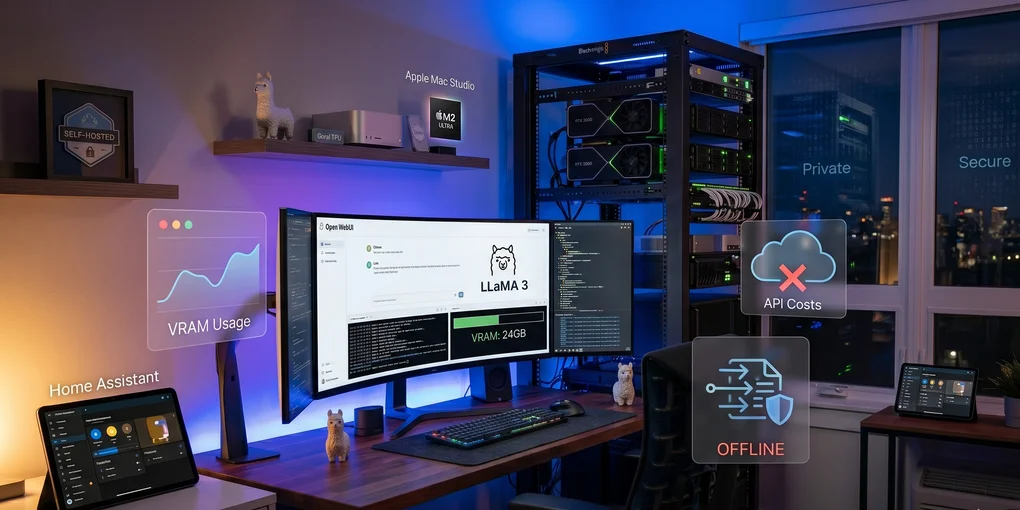
Hosting Private LLMs on Your Home Lab
For years, the promise of artificial intelligence felt locked behind corporate walled gardens. If you wanted to build an intelligent agent, summarize a document, or code with an AI assistant, your only real option was to route your private data through proprietary APIs. Every query carried a micro-transaction cost, and every prompt was added to a corporate training pool.
But the open-source community has shifted the paradigm. With the release of highly optimized, quantized architectures like LLaMA 3, Mistral, and Phi-3, we can now run exceptionally capable models locally.
If you already maintain a home lab, hosting your own Large Language Model (LLM) is the ultimate upgrade. It turns your server into a private, zero-cost, offline-capable brain. Let’s dive into how to choose the right hardware, deploy the orchestration stack, and integrate local intelligence into your daily workflows.
1. Analyzing the Hardware Landscape: VRAM is King
When it comes to local AI, the metric that trumps all others is Video RAM (VRAM).
Unlike traditional self-hosted applications that scale with CPU cores or system RAM, LLMs must fit entirely inside your GPU’s high-speed memory to generate tokens at an acceptable speed. If a model spills over into system RAM, token generation speeds will drop from a crisp 50 tokens-per-second (t/s) to a agonizingly slow 2 t/s.
Here is how the current hardware architectures stack up for home lab deployments:
Option A: Consumer NVIDIA GPUs (The Gold Standard)
If you want raw speed and seamless compatibility, NVIDIA remains the undisputed champion. Thanks to their mature CUDA ecosystem, almost every open-source machine learning framework is optimized for green team silicon out of the box.
- The Sweet Spot: A used NVIDIA RTX 3090 (24GB VRAM). It offers the same VRAM capacity as the much more expensive RTX 4090, allowing you to comfortably run 8B to 14B parameter models at high precision (Q8 quantization), or even squeezed 34B models at lower quantizations (Q4).
- Multi-GPU setups: You can pool VRAM by installing multiple GPUs (e.g., two RTX 3090s for 48GB of VRAM) to run beefier models like LLaMA 3 70B, though this demands a robust power supply and excellent chassis cooling.
Option B: Unified-Memory Apple Silicon (The VRAM Hack)
For pure capacity-per-dollar, Apple Silicon is a fascinating alternative. Because M-series chips (Pro, Max, and Ultra) use a unified memory architecture, the GPU can access up to 75% of the system’s total RAM as graphics memory.
- The Advantage: A Mac Studio with 128GB of unified memory can host massive 70B and 100B parameter models on a single, silent, low-power machine.
- The Catch: While Apple’s Metal Performance Shaders (MPS) have great support, token generation speeds are slower than dedicated desktop GPUs, and these systems don’t fit nicely into a standard 19-inch rack-mount chassis.
Option C: Dedicated AI Accelerators & NPUs
While specialized hardware like Google Coral TPUs or Intel Gaudi accelerators are incredible for computer vision or niche inference tasks, they lack the broad, out-of-the-box software support that LLM runtimes require. For a general-purpose home lab LLM server, stick to standard GPUs.
Here is a calculator to help you get an idea of the hardware you might need, or to see how AI performance scales with different hardware configurations:
LLM Hardware Calculator
Estimate VRAM requirements for self-hosted models
2. Deploying the Stack: Ollama, Docker, and Open WebUI
To make your local model accessible to your entire home network, we need an inference engine and a clean web interface.
We will use Ollama as our backend model runner and Open WebUI as our front-end interface. Running this stack in Docker makes deployment, updates, and GPU passthrough incredibly straightforward.
Prerequisites
Before spinning up the container, ensure you have the NVIDIA Container Toolkit installed on your host OS. This allows Docker containers to access your physical GPU resources.
The Docker Compose Configuration
Create a docker-compose.yml file on your home server:
version: '3.8'

services:
  ollama:
    image: ollama/ollama:latest
    container_name: ollama
    restart: unless-stopped
    ports:
      - "11434:11434"
    volumes:
      - ./ollama:/root/.ollama
    deploy:
      resources:
        reservations:
          devices:
            - driver: nvidia
              count: all
              capabilities: [gpu]

  open-webui:
    image: ghcr.io/open-webui/open-webui:main
    container_name: open-webui
    restart: unless-stopped
    ports:
      - "3000:8080"
    environment:
      - OLLAMA_BASE_URL=http://ollama:11434
    volumes:
      - ./open-webui:/app/backend/data
    depends_on:
      - ollama
Launching the Stack
Run the stack using:
docker compose up -dOnce running, navigate to http://<your-server-ip>:3000 to access the Open WebUI panel. This interface mirrors the premium aesthetics of ChatGPT but runs entirely on your hardware.
To download your first model, open the settings menu inside Open WebUI, navigate to Models, and pull a model like llama3 or mistral. Ollama will download the model weights directly to your server and optimize them for your GPU.
3. Local Automation: Putting Your LLM to Work
Having a local web interface is great, but the true magic of a home lab LLM lies in automated integrations. Because your Ollama instance exposes a standard REST API locally, you can use it to drive offline automation.
Integrating with Home Assistant
If you use Home Assistant for smart home automation, you can replace cloud voice assistants with your local LLM.
By using the Ollama Integration or the popular Extended OpenAI Conversation integration (pointing the API endpoint to http://<your-ollama-ip>:11434/v1), you can give your smart home an actual brain.
Instead of rigid commands like “turn on living room light,” you can say:
“The kids are going to sleep now.”
Your local LLM can interpret the context, recognize the intent, and trigger your Home Assistant scripts to dim the lights, lock the doors, and play white noise.
Custom Shell Scripting: Command-Line Assistant
You can also build custom terminal utilities. I use a simple shell alias to pipe system logs or code snippets directly to my local LLM for instant, private debugging.
Add this alias to your .bashrc or .zshrc:
explain() {
  local prompt=$(cat)
  curl -s -X POST http://<your-server-ip>:11434/api/generate -d "{
    \"model\": \"llama3\",
    \"prompt\": \"Analyze the following system logs or code and explain the error briefly: \$prompt\",
    \"stream\": false
  }" | jq -r '.response'
}
Now, when a Docker container fails to build or a script throws a cryptic error, I can simply pipe the output directly to my home lab:
docker logs nginx 2>&1 | tail -n 20 | explainWithin seconds, my local server parses the log and explains the issue—without a single byte of data leaving my local network.
Conclusion: True Digital Sovereignty
Hosting an LLM on your own hardware is more than just a fun engineering project. It is a assertion of digital sovereignty.
By taking the time to curate your hardware, deploy an isolated stack, and bind it to your local automation pipelines, you build a system that is fast, free to use, and fundamentally secure. No subscription models, no privacy policy updates, and no downtime when the cloud goes dark.
Whether you’re optimizing a smart home or automating system administration tasks, home-grown intelligence is the future of the home lab.